
Your Tag Coverage summary can display results for up to 10,000 pages. With Google’s Tag Coverage feature, you can quickly check which tags are firing on your website and which ones are not. This summary is available in the Google tag sections of Google Ads, Google Analytics, and also within Google Tag Manager (GTM).
What is Tag Coverage?
Tag Coverage is a tool inside Google Tag Manager that gives you a detailed view of tags on your site—showing which ones are firing and which ones are inactive. It is particularly helpful for websites running multiple tags or for those that have recently made updates and need to confirm everything is functioning as expected.
It should be noted that the Tag Coverage feature only looks for the gtag.js JavaScript snippet or the GTM container snippet—not any of the individual tags that exist within the container. Even though Google Tag Manager has a “Google Tag” template inside of it, the diagnostics do not check individual tags in your GTM container. Google simply checks if all your website pages have either a hardcoded gtag.js tracking code or a Google Tag Manager container snippet.
What the Tag Coverage Summary Includes
- Total tags installed on the site
- Tags that are currently firing
- Tags that are not firing
- Tags with no data
- Pages that contain no tags
The Problem: Why Inconsistent Tag Coverage Happens
Google Tag Manager (GTM) lets you manage tracking tags across your website and connect them with privacy and cookie tools. For it to function properly and stay compliant, the GTM installation code needs to be implemented across the entire site (with only a few exceptions).
On the surface, this seems straightforward—share the install snippet with developers and have it added sitewide. Often this works, but issues can arise in situations like:
- The snippet is implemented incorrectly
- It’s only added to specific pages or domains
- New site updates go live without including the GTM snippet
These problems can lead to serious consequences, such as unexpected drops in analytics performance, fewer recorded sessions, or even a complete halt in conversion tracking. In cases where the snippet is missing only on certain pages, the issue can be especially hard to detect because most tracking may still appear to function normally.
Once these inconsistencies are discovered, the process of identifying the root cause can be tedious—requiring manual checks across pages and domains to confirm whether the GTM code is broken or missing. Before the Tag Coverage tool existed, using Screaming Frog to crawl a site for the GTM snippet was possible, but it involved additional licensing costs and still required significant manual effort.
How to Access Tag Coverage in GTM: Two Methods
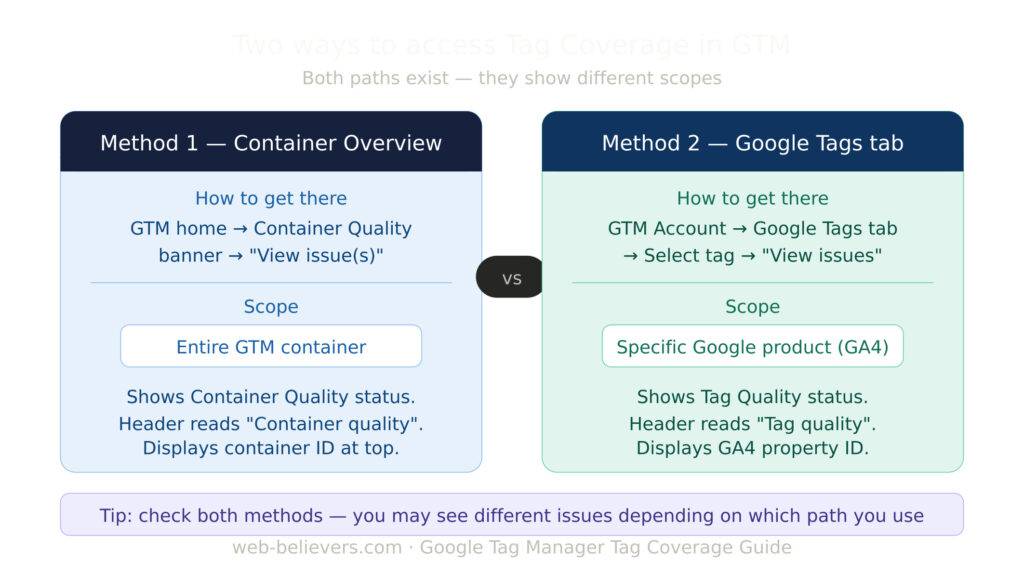
Most guides show you one path into Tag Coverage, but GTM actually offers two access methods—and they show different things. Knowing both is important.
Method 1: Via the Tags Menu (Container-Level View)
- Log in to your Google Tag Manager account.
- Select the container you want to check.
- From the left navigation, click “Tags.”
- Choose “Tag Coverage” from the sub-menu.
Issues diagnosed through this method are tied to your GTM container ID and cover the health of all tags inside that container.
Method 2: Via the Google Tags Tab (Tag-Level View)
- Go to your GTM Account and click the “Google Tags” tab.
- You’ll see a list of connected tags—typically your GA4 measurement IDs.
- Click on a specific tag, then click “View Issues.”
This opens Tag Diagnostics scoped to that specific Google product (e.g., your GA4 property), not the whole container. The diagnostic header here says “Tag diagnostics” and “Tag quality” rather than “Container quality.”
Key difference:
Also Available in Google Analytics 4
A similar section called Tag Quality is also available inside Google Analytics 4. Navigate to: Admin → Data Streams → Select your website stream → Configure tag settings. The fixes discussed in GTM apply equally in that context.
Understanding the “Some of Your Pages Are Not Tagged” Warning
When you log into Google Tag Manager, the Overview screen includes a section called Container Quality. If everything is working correctly, it shows “Excellent.” But if it shows “Needs Attention,” it means one or more issues need your review—and the most common one is the warning: “Some of your pages are not tagged.”
To investigate, click the “View Issue(s)” link in the Container Quality section. You will see a list of all warnings you must resolve. Click “See Untagged Pages” to open the Tag Coverage Summary.
The error “Some of your pages are not tagged” will be displayed if you have at least one page in the “Not Tagged” section.
Container Quality Status Levels: What Each One Means
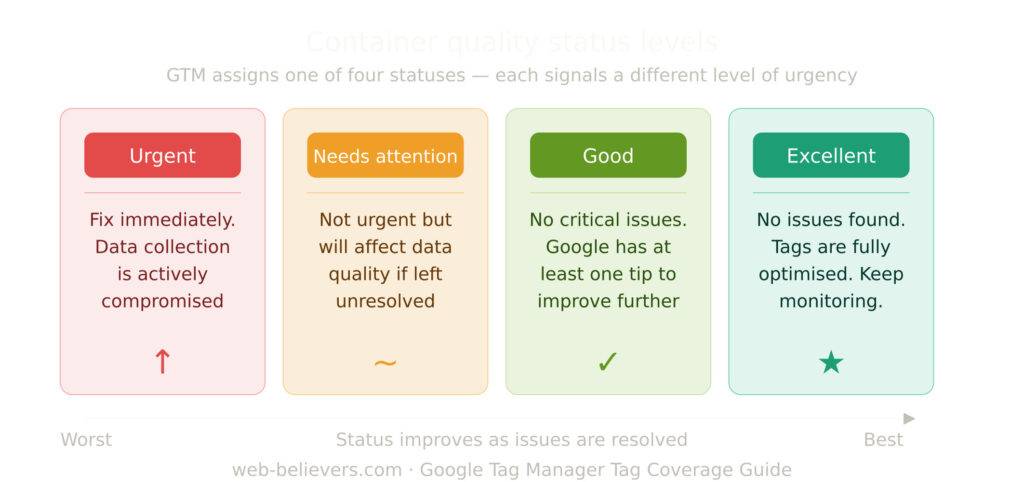
When Google Tag Manager flags an issue, it doesn’t treat all problems equally. There are four distinct quality statuses, each representing a different level of urgency:
- Urgent: Must be fixed immediately. These issues directly impact your data collection and measurement integrity.
- Needs Attention: Not a fire, but not ignorable. Fixing these improves the quality of your data over time.
- Good: No critical issues, but Google has at least one recommendation to optimize further.
- Excellent: No issues detected. Your tags are fully healthy. Continue monitoring periodically, as status can change if new pages or configurations are added.
Understanding these status levels helps you triage your workload—not every warning requires dropping everything.
Using the Tag Coverage Report: The Four Page Categories
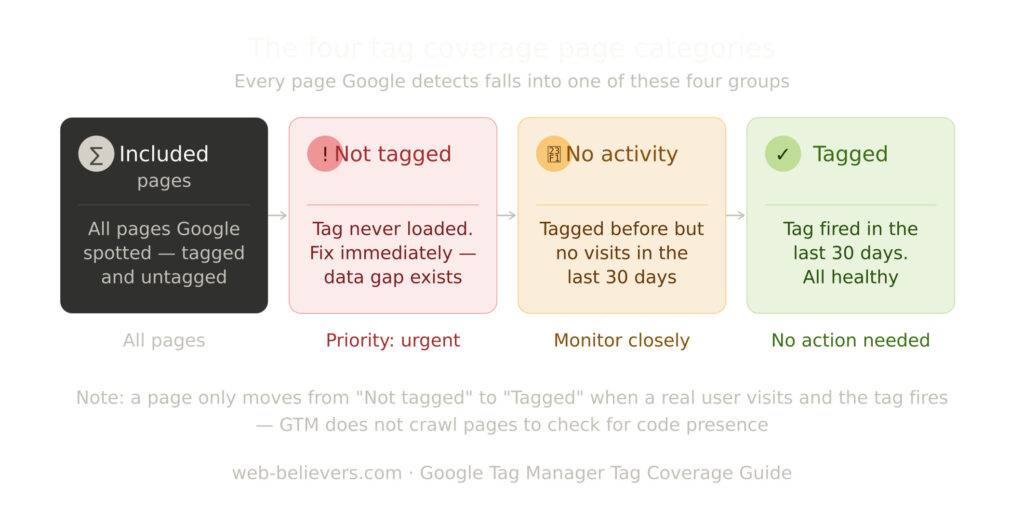
Once inside the Tag Coverage Summary, pages are divided into four categories:
- Included pages: A list of ALL pages that Google spotted for this container. It includes both tagged and not-tagged pages—both suggested pages and pages you’ve manually added.
- Not tagged: Pages where the Google Tag or GTM snippet has never loaded. These are your priority—install your tag on these pages to get complete measurement.
- No recent activity: Pages that were tracked by Google at some point but have had no activity in the last 30 days.
- Tagged: Pages that have loaded this tag in the last 30 days. These are healthy.
Spot Inactive Tags
Instantly see which tags are not firing and fix any misconfiguration issues.
Evaluate Page Coverage
Identify which pages have tags applied and which do not, ensuring important pages are properly tracked.
Optimize Tag Performance
If certain tags aren’t firing, adjust configurations or triggers so they activate correctly.
Why Tag Coverage Shows False Positives (And How to Handle Them)
One of the most frustrating aspects of the Tag Coverage tool is that it can mark pages as “Not Tagged” even when your GTM snippet is correctly installed and working. This happens because the tool doesn’t crawl your website looking for code—it only registers a page as “Tagged” when a real user visits it and the tag actually fires.
If a page hasn’t been visited in the last 30 days, it will appear under “No Recent Activity” or even “Not Tagged,” regardless of whether the code is there. This is especially problematic for:
- Low-traffic websites: Many legitimate pages may never appear as “Tagged” simply because they rarely get visited.
- Newly published pages: A page published yesterday won’t show as “Tagged” until a real user visits it.
- Staging or admin pages: These may be detected but never visited by real users.
How to Handle False Positives
Before escalating to your development team, manually inspect the suspected page using GTM’s Preview/Debug mode or your browser’s developer tools. If the GTM snippet is present and firing correctly, you can safely mark the page as “Ignored” in the Tag Coverage interface. Alternatively, wait 24–48 hours after a page receives real traffic—the status often updates on its own.
Never assume that a “Not Tagged” status automatically means a broken implementation. Always verify manually first.
Included Pages Explained: Suggested vs. Manual
By default, the list shows “suggested” pages—URLs that Google has selected to check and report on their tag status. You can choose to either keep or ignore these suggestions:
- Adding them keeps the pages visible for ongoing monitoring
- Removing them hides them from the list unless there’s a reason for them to reappear
Managing Large Sites: Bulk CSV Import and Export
For websites with hundreds or thousands of pages, managing tag coverage one URL at a time isn’t practical. Google Tag Manager’s Tag Coverage tool supports bulk management through CSV files.
Exporting Untagged Pages
Go to the “Not Tagged” tab inside the Tag Coverage summary and click the “Download Coverage Report” button. This gives you a spreadsheet of all flagged URLs, which you can share directly with your development team without granting them access to your GTM container.
Importing a URL List
You can upload a CSV to tell GTM which pages to monitor or ignore. The file needs two columns: one for the URL and one for the Include Status (yes/no). All URLs must be percent-encoded. If you’re preparing the file in Google Sheets, use the formula =ENCODEURL(A2) to encode each URL automatically before uploading.
This workflow is especially valuable when launching a new section of a website or adding a new subdomain—you can proactively add those URLs to the monitoring list before traffic even arrives.
Launch Tag Assistant Directly from Tag Coverage
One underused feature within the Tag Coverage URL list is the Tag Assistant link available on each page row. Instead of opening a separate browser tab and manually navigating to the page you want to debug, you can click the Tag Assistant icon directly from the Tag Coverage interface.
This instantly launches GTM’s Preview mode on that specific page, letting you inspect exactly which tags fired, which triggers activated, and whether your data layer is behaving as expected. This is particularly useful when investigating newly flagged pages or verifying a fix after your developers have deployed the GTM snippet to previously untagged URLs.
Tag Coverage Is Just One of 13 Container Diagnostic Messages
While untagged pages are the most common issue users encounter, Google Tag Manager’s Container Diagnostics feature can surface up to 13 different warning types. Knowing what else can appear helps you respond to future alerts confidently.
Some of the other common diagnostic messages include:
- Some of your pages are not tagged: The most common. Certain pages are not tagged, affecting data accuracy. Visit the Tag Coverage Summary to find and fix untagged pages.
- Additional domains detected for configuration: Appears when GTM detects other domains that should be included for cross-domain tracking. Fix it by specifying all relevant domains in the Google tag settings.
- Using legacy Universal Analytics tags: Flags pages still loading GA4 via the old UA tag. This blocks access to features like Enhanced Measurement. Fix by installing the Google tag directly or via GTM.
- Conversion linker issues: Warns about misconfigured linker settings that can break cross-domain conversion attribution in Google Ads.
Tag Coverage (untagged pages) is the most urgent of these, but resolving it doesn’t mean your container is fully healthy. Run through all flagged diagnostics to ensure complete tracking integrity.
What Exactly is the “Google Tag” in This Context?
Google Tag refers to one of two things:
- gtag.js snippet: Inserted directly into the source code of your website. This is relevant if you don’t use Google Tag Manager and have chosen to install GA4 or Google Ads tracking codes directly in the HTML.
- Google Tag Manager container snippet: Added to the source code of the website. GTM then manages all your individual tags from within the container.
Is 100% Tag Coverage Always Necessary?
Not necessarily. 100% coverage is appropriate for tags that need to fire on every page—such as a page view tracking tag for GA4. But some tags are intentionally designed to fire only on specific pages or events:
- A purchase confirmation tag should only fire on the order confirmation page
- A lead form tag should only fire when a form is submitted
- A remarketing tag may only be needed on product pages
In these cases, coverage below 100% is correct and expected. The goal is to achieve the right coverage for each tag’s intended scope, not blanket 100% coverage for every tag across the entire site.
Correct Implementation: Where and How to Place Your Tag
The Google Tag snippet must be placed in the <head> section of every page on your website, as high up as possible—ideally immediately after the opening <head> tag. The snippet consists of two parts: a <script> tag that loads the gtag.js library asynchronously from Google’s servers, and an inline <script> block that initializes the tag with your Measurement ID (for GA4) or Conversion ID (for Google Ads).
If you are using Google Tag Manager, place the GTM container snippet instead—the <script> in the <head> and a <noscript> fallback immediately after the opening <body> tag. Placing the tag near the closing </body> tag delays its loading and risks missing events for users who leave quickly or have slow connections.
What Does “Low Coverage” Mean in GTM?
Low coverage in Google Tag Manager’s Tag Coverage report means that a particular tag is not firing on all pages where it is expected to fire. It could indicate:
- Certain page templates or URL patterns are missing the GTM container snippet
- Trigger conditions are too narrow and inadvertently excluding pages
- A tag has exceptions or blocking triggers that are over-configured
- Rendering issues in JavaScript-heavy single-page applications (SPAs) prevent the tag from firing consistently
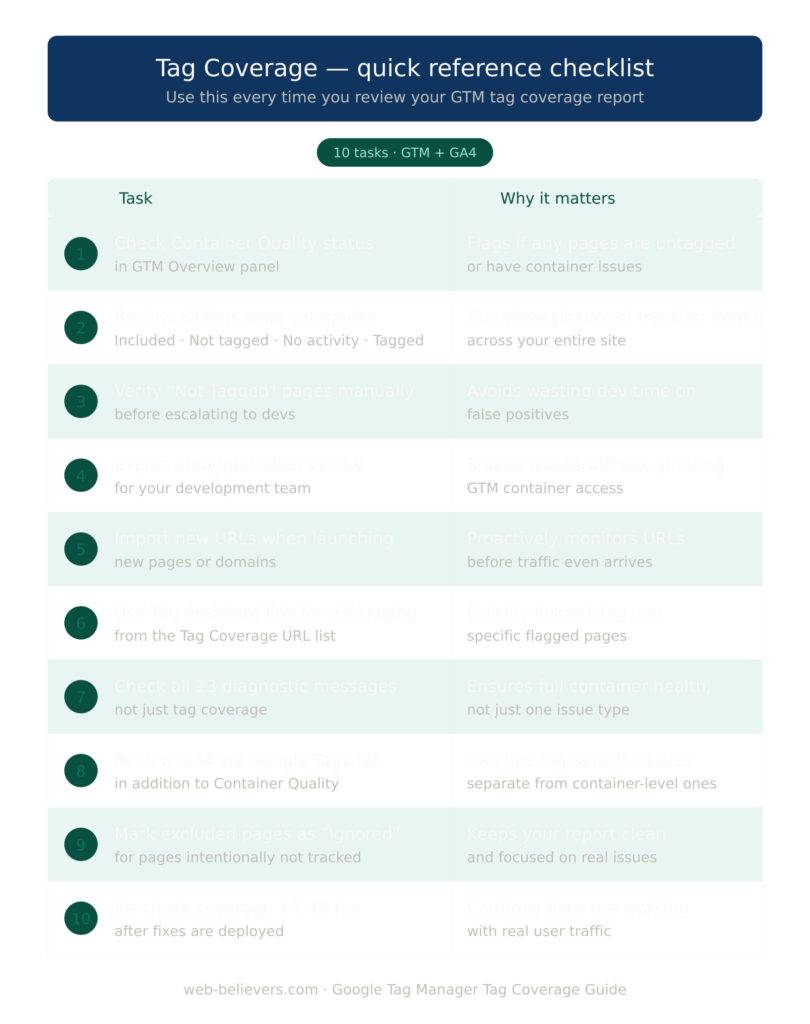
Tag Coverage Quick Reference Checklist
Use this checklist whenever you review your Tag Coverage report:
Conclusion
Google’s Tag Coverage feature is one of the most practical additions to Google Tag Manager in recent years. It transforms what used to be a time-consuming, manual process—crawling pages, inspecting code, and chasing down developers—into a centralized, at-a-glance dashboard for your entire website’s tracking health.
To get the most from it: check both access methods (Container Overview and Google Tags tab), understand the four quality status levels, distinguish real issues from false positives, use the CSV export to communicate with developers cleanly, and always verify with Tag Assistant before concluding that something is broken.
Most importantly, remember that resolving tag coverage is just one piece of the puzzle. Your GTM container can surface up to 13 different diagnostics—make it a habit to review all of them regularly to maintain complete, accurate, and compliant tracking across your entire website.
FAQs on Google Tag Coverage
Q1. What is the purpose of Tag Coverage in Google Tag Manager?
Tag Coverage helps you monitor whether all tags on your site are firing correctly, ensuring accurate tracking and reporting.
Q2. How many pages can Tag Coverage analyze at once?
The feature can generate a summary for up to 10,000 pages.
Q3. Why do some tags show “no data”?
A tag may show “no data” if it hasn’t had any triggering events or user interactions since being published.
Q4. Can I use Tag Coverage outside Google Tag Manager?
Yes. The feature is accessible through the Google tag sections of both Google Ads and Google Analytics.
Q5. What should I do if a tag isn’t firing?
Review the tag setup, verify triggers, and confirm that the tag is placed correctly. Adjusting configuration usually resolves the issue.
UNDERSTANDING GOOGLE TAG COVERAGE
Q: What is Google Tag coverage and why does it matter? A: Google Tag coverage refers to the extent to which the Google Tag (formerly known as the Global Site Tag or gtag.js) is correctly implemented across all pages of a website or app. It measures whether the tag is firing on every page where it is needed — capturing user interactions, conversions, and behavioral data without gaps. Coverage matters because incomplete or inconsistent tag deployment leads to missing data, inaccurate reporting, incorrect conversion counts, and ultimately poor decisions based on flawed analytics.
Q: What is the Google Tag and how is it different from Google Tag Manager? A: The Google Tag (gtag.js) is a single JavaScript snippet that you place directly in the HTML of your website to send data to Google products such as Google Analytics 4 (GA4), Google Ads, and Google Marketing Platform. Google Tag Manager (GTM), on the other hand, is a tag management system — a container that allows you to deploy and manage multiple tags (including the Google Tag) without modifying website code directly. GTM is the recommended approach for most websites as it provides better control, version history, and easier coverage management across pages.
Q: Where can I check the coverage status of my Google Tag? A: You can check Google Tag coverage in several places. In Google Analytics 4, navigate to Admin > Data Streams > select your stream > Google Tag section to see implementation status. In Google Tag Manager, the Tag Coverage report (under Admin > Tag Coverage) shows which tags are firing across your site. Google Search Console also provides some tag diagnostics. Additionally, third-party tools like Tag Assistant (a Chrome extension by Google), Screaming Frog, and ObservePoint can crawl your site and report on tag coverage across all pages.
Q: What does it mean when Google Tag Manager shows a tag has ‘low coverage’? A: Low coverage in Google Tag Manager’s Tag Coverage report means that a particular tag is not firing on all pages where it is expected to fire — or where your trigger conditions suggest it should fire. It could indicate that certain page templates or URL patterns are missing the GTM container snippet, that trigger conditions are too narrow and inadvertently excluding pages, that a tag has exceptions or blocking triggers that are over-configured, or that there are rendering issues (e.g., with JavaScript-heavy single-page applications) that prevent the tag from firing consistently.
Q: Is 100% tag coverage always necessary or desirable? A: Not necessarily. 100% coverage is appropriate for tags that need to fire on every page — such as a page view tracking tag for GA4. But some tags are intentionally designed to fire only on specific pages or events — for example, a purchase confirmation tag should only fire on the order confirmation page, a lead form tag only when a form is submitted. In these cases, coverage below 100% is correct and expected. The goal is to achieve the right coverage for each tag’s intended scope, not blanket 100% coverage for all tags.
IMPLEMENTATION & SETUP
Q: What is the correct way to implement the Google Tag on a website? A: The Google Tag snippet must be placed in the <head> section of every page on your website, as high up as possible — ideally immediately after the opening <head> tag. The snippet consists of two parts: a <script> tag that loads the gtag.js library asynchronously from Google’s servers, and an inline <script> block that initializes the tag with your Measurement ID (for GA4) or Conversion ID (for Google Ads). If you are using Google Tag Manager, you place the GTM container snippet instead — the <script> in the <head> and a <noscript> fallback in the <body>.
Q: What is the difference between placing the tag in the <head> versus the <body>? A: Placing the Google Tag in the <head> section ensures it loads as early as possible during page rendering, maximizing the chance that it fires before a user leaves or interacts with the page. Placing it in the <body> — particularly near the closing </body> tag — delays its loading and risks missing events for users who leave quickly or have slow connections. Google explicitly recommends <head> placement for the script portion of the GTM snippet. The GTM <noscript> fallback (an <iframe> tag) should go immediately after the opening <body> tag.
Q: How do I implement the Google Tag on a CMS like WordPress, Shopify, or Wix? A: For WordPress, you can use plugins such as Site Kit by Google, GTM4WP (Google Tag Manager for WordPress), or Insert Headers and Footers to add the tag snippet to all pages automatically. For Shopify, add the GTM or Google Tag snippet through the theme editor (theme.liquid file) or use the Google & YouTube sales channel app. For Wix, use the Marketing Integrations panel under Settings to connect Google Analytics or add custom code via the Velo development platform. For Squarespace, use the Code Injection feature under Settings > Advanced. In all cases, verify after implementation using Tag Assistant to confirm the tag is firing correctly.
Q: How does Google Tag coverage work in Single Page Applications (SPAs)? A: Single Page Applications (built with React, Angular, Vue, etc.) present a unique challenge for tag coverage because page navigation happens dynamically without full page reloads — meaning the Google Tag or GTM container may only fire once when the app initially loads, missing subsequent virtual page views. To ensure proper coverage in SPAs, you must implement History Change triggers in GTM (which detect URL changes in the browser’s history API) or use the GA4 measurement protocol / gtag event calls programmatically within the app’s routing logic to push page view events each time the virtual route changes.
Q: How do I verify that the Google Tag is firing on all pages after implementation? A: Use Google’s Tag Assistant Chrome extension — navigate through your website while Tag Assistant is active and it will show you whether the tag is present and firing correctly on each page. In GTM, use Preview Mode (the debug panel) to see which tags fire as you navigate the site. In GA4, use the DebugView report (Admin > DebugView) which shows real-time events from your browser session. For large sites, use a site crawler like Screaming Frog configured to check for the presence of the GTM or gtag snippet across all crawled URLs, and export a coverage report.
GOOGLE TAG MANAGER COVERAGE REPORT
Q: Where is the Tag Coverage report in Google Tag Manager and how do I access it? A: The Tag Coverage report in Google Tag Manager is accessible via Admin > Container > Tag Coverage in the GTM interface. It provides a visual overview of all tags in your container and shows their firing frequency relative to the total number of tag firings detected. It identifies tags with unusually low or high firing rates compared to your baseline tags (such as your GA4 page view tag), helping you spot tags that may be misconfigured, over-triggered, or under-triggered. Note that the Tag Coverage report is available for web containers and requires that your GTM container has sufficient traffic data.
Q: How does GTM determine which tags have ‘unexpected’ coverage? A: GTM’s Tag Coverage report uses your most consistently firing tag as a baseline — typically your GA4 page view or all-pages trigger tag — and compares all other tags against this baseline. Tags that fire significantly less often than the baseline are flagged as potentially having low coverage. Tags that fire more often than the baseline (e.g., firing multiple times per page) are flagged as potentially over-firing. GTM uses statistical analysis of actual firing data collected from your live container to generate these insights.
Q: What should I do if the Tag Coverage report shows a critical tag is firing on 0% of pages? A: A 0% firing rate indicates the tag has never fired in the reporting period. Investigate by: checking if the tag is paused in GTM (a paused tag will not fire); reviewing the tag’s trigger conditions to ensure they match pages that actually exist and receive traffic; using GTM Preview Mode to manually trigger the tag and observe whether it fires or is blocked; checking for tag sequencing rules that may prevent the tag from firing; verifying that the GTM container snippet is present on the pages your trigger targets; and confirming that no blocking triggers or trigger exceptions are inadvertently suppressing the tag entirely.
Q: Can I use the Tag Coverage report to identify pages where GTM is not installed? A: The Tag Coverage report within GTM can only report on pages where the GTM container is already present and sending data — it cannot identify pages that don’t have the GTM snippet at all, because those pages generate no data in GTM. To identify pages missing the GTM snippet entirely, you need an external tool: use Screaming Frog or a similar crawler to scan all URLs on your site and check for the presence of the GTM container ID in the page source. Compare the crawled URL list against your GTM data to identify gaps.
COMMON COVERAGE PROBLEMS & FIXES
Q: Why is my Google Tag firing on some pages but not others? A: This is one of the most common tag coverage issues. Possible causes include: the GTM container snippet or gtag code is missing from certain page templates (e.g., a checkout template, error page, or campaign landing page template that was not updated); trigger conditions are too restrictive and exclude certain URL patterns; the tag fires only on certain devices or browsers due to trigger filters; JavaScript errors on specific pages prevent the GTM container from loading; consent mode or cookie consent tools are blocking the tag on certain pages; or the site uses iframes or subdomains that are treated as separate browsing contexts.
Q: My Google Tag fires multiple times on the same page — how do I fix this? A: A tag firing multiple times per page view (double-firing or triple-firing) inflates your data and skews analytics. Common causes include: the GTM container snippet being placed in the page source more than once (check your theme files, header/footer plugins, and hardcoded snippets); a trigger that fires on both DOM Ready and Window Loaded events when only one is needed; history change triggers firing in addition to the initial page load trigger on non-SPA sites; or a tag that is configured to fire on All Elements clicks when it should be restricted to a specific element. Fix by auditing all trigger conditions, removing duplicate snippets, and adding tag firing frequency limits (Once Per Page) where appropriate.
Q: How do I fix tag coverage issues caused by a cookie consent management platform (CMP)? A: Cookie consent platforms (such as OneTrust, Cookiebot, or CookieYes) block tags from firing until the user gives consent, which is correct behavior under GDPR and similar regulations. However, misconfiguration can cause tags to never fire even after consent is given, or to fire before consent is registered. Fix by: implementing Google’s Consent Mode v2, which allows GA4 and Google Ads tags to fire in a cookieless, consent-respecting mode even before full consent; ensuring your CMP is correctly integrated with GTM via the Consent Initialization trigger; and testing consent scenarios using GTM Preview Mode with the consent state clearly visible in the debug panel.
Q: Why does my GA4 tag show good coverage but my Google Ads conversion tag shows poor coverage? A: This is expected behavior if your Google Ads conversion tag is correctly configured to fire only on specific conversion pages (e.g., thank-you pages, order confirmation pages) rather than all pages. However, if you believe the tag should be firing more broadly, check: whether the trigger is correctly identifying conversion URLs (check for HTTPS vs HTTP differences, trailing slashes, query parameters); whether the conversion page is missing the GTM snippet; whether the user journey to reach the conversion page is being blocked by redirects that strip the GTM container; and whether consent mode or ad blockers are preventing the Ads tag from firing for a portion of users.
Q: How do I ensure Google Tag coverage on AMP (Accelerated Mobile Pages)? A: AMP pages have strict restrictions on JavaScript and require a separate implementation approach. You cannot use the standard gtag.js snippet or GTM web container on AMP pages. Instead, use the amp-analytics component for GA4 tracking on AMP pages, and configure it with your GA4 Measurement ID. For Google Tag Manager, there is a separate AMP container type that must be created specifically for AMP pages. Standard web GTM containers and AMP GTM containers are entirely separate and must be managed independently. Coverage on AMP pages must be verified separately from your main web implementation.
AUDITING & MONITORING
Q: How do I conduct a full Google Tag coverage audit for a large website? A: A comprehensive tag coverage audit for a large site involves: (1) crawling all URLs with a tool like Screaming Frog configured to detect the GTM container ID or gtag snippet in the page source; (2) exporting the list of pages missing the tag and cross-referencing with your CMS templates to identify which templates need updating; (3) reviewing the GTM Tag Coverage report to identify tags with unexpected firing rates; (4) using GTM Preview Mode or Tag Assistant to manually verify firing on key page types (homepage, product pages, checkout, confirmation pages); (5) checking GA4 DebugView and real-time reports for data consistency; and (6) documenting all findings and creating a remediation plan with priority order based on business impact.
Q: How often should I audit Google Tag coverage? A: For active websites, a formal tag coverage audit should be conducted at minimum quarterly. Additionally, trigger an ad-hoc audit whenever: a major site redesign or template change is deployed; a new section or subdomain is launched; the CMS or e-commerce platform is updated; a new consent management platform is implemented; significant unexplained drops in GA4 traffic or conversion data are observed; or new tags and triggers are added to GTM. Many organizations set up automated monitoring using tools like ObservePoint or Trackingplan that continuously monitor tag health and alert teams when coverage drops.
Q: What tools can I use to continuously monitor Google Tag coverage? A: Several tools are available for ongoing tag coverage monitoring. Google’s own Tag Assistant Companion (browser extension) and GA4 DebugView are useful for manual spot-checking. For automated monitoring, ObservePoint is the most comprehensive enterprise solution — it crawls your site on a schedule and alerts you to tag failures. Trackingplan and Avo Inspector automatically monitor data layer events and tag firing patterns. Screaming Frog can be scheduled to run crawls and check for tag presence. For GTM-specific monitoring, the GTM Tag Coverage report and GTM’s built-in notification system for container publishing provide basic oversight. The right tool depends on your site’s size, budget, and technical complexity.
Q: How do I set up alerts for Google Tag coverage drops in GA4? A: In GA4, you can set up custom insights and alerts by navigating to Reports > Insights > Create and configuring an anomaly detection alert on key metrics such as Sessions, Events, or Conversions. If these metrics drop significantly below their expected range, GA4 will notify you via email — which often indicates a tag coverage issue. Additionally, in GTM you can use the built-in notification settings to receive emails when a container is published (allowing you to monitor changes that might affect coverage). For more proactive monitoring, connect GA4 data to Looker Studio and build a daily dashboard tracking session counts and conversion volumes with threshold-based conditional formatting to highlight anomalies.
DATA QUALITY & REPORTING
Q: How does poor tag coverage affect GA4 reports and Google Ads performance? A: Poor tag coverage directly corrupts the data that GA4 and Google Ads rely on for reporting and optimization. In GA4, missing page view tags lead to understated session counts, incorrect bounce rates, broken user journey paths, and inaccurate funnel reports. In Google Ads, incomplete conversion tag coverage means conversions are not recorded, leading to Smart Bidding algorithms making suboptimal bid decisions (since they optimize toward conversions), wasted ad spend, and an inability to accurately calculate return on ad spend (ROAS). The impact compounds over time as machine learning models are trained on flawed data.
Q: Can I recover historical data lost due to a tag coverage gap? A: Unfortunately, data lost due to a tag coverage gap generally cannot be recovered retroactively in GA4 or Google Ads — once a page view or event is not captured at the time it occurs, it is gone. However, you can partially reconstruct missing data by: using Google Analytics Data Import to upload offline data; using the GA4 Measurement Protocol to backfill events if you have server-side logs; estimating missing data using statistical interpolation based on known traffic patterns; and documenting the gap period clearly in your reporting so stakeholders understand why data appears anomalous during that time.
Q: How do I ensure data accuracy across multiple domains with the Google Tag? A: When your website spans multiple domains (cross-domain tracking), each domain must have the Google Tag or GTM container installed, and cross-domain linking must be configured so that users are recognized as the same person as they move between domains. In GA4, configure cross-domain measurement under Admin > Data Streams > Configure tag settings > Configure your domains. In GTM, ensure the Google Tag configuration variable includes cross-domain settings. Without proper cross-domain configuration, users moving between your domains will be counted as new sessions and new users, significantly overstating user counts and distorting attribution data.
Q: What is server-side tagging and how does it improve tag coverage reliability? A: Server-side tagging moves tag execution from the user’s browser to a server you control (typically deployed on Google Cloud, AWS, or a similar platform). Instead of loading multiple JavaScript tags in the browser — which can be blocked by ad blockers, browser restrictions, or slow network conditions — a single first-party request is sent from the browser to your server, which then forwards the data to Google Analytics, Google Ads, and other platforms. This improves tag coverage reliability by bypassing browser-based ad blockers, reduces page load time by removing client-side tag overhead, and improves data accuracy. GTM supports server-side containers, and implementation requires a cloud server and technical expertise to configure.